Introduction
hydenix is a NixOS + Home Manager configuration for HyDE.
It brings the HyDE desktop experience to NixOS while taking advantage of the Nix module system and reproducible configuration management.
Features
- Declarative configuration via
hydenixandhydenix.hmoptions - Built on the NixOS module system (easily extend, override, or disable modules)
- Close feature parity with the upstream HyDE
- Support for all community themes from hyde-gallery
- Fully reproducible desktop environments
- Easy system rollbacks
- Version-controlled desktop configuration
Important
Some familiarity with functional programming concepts is recommended.
If you are new to Nix, check the Nix resources or ask questions in Discussions or Discord.
Documentation
- Installation
- Upgrading
- Module Options
- FAQ
- Troubleshooting & Issues
- Contributing
- Community Configurations
hydenix VM
If your system supports virtualization, you can try hydenix in a NixOS VM without installing it on your machine.
If you encounter issues running Hyprland inside the VM, see the VirtIO guide.
# run the flake remotely
nix run github:florianvazelle/hydenix
Note
Any configuration changes require rebuilding the VM. To reset it, delete the disk image:
rm hydenix.qcow2
Installation
Caution
The provided flake template assumes a minimal NixOS installation. Install NixOS first, then follow the steps below.
1. Initialize the flake template
Create a new directory for your configuration and initialize the hydenix flake template.
# create a new directory and initialize the template
mkdir hydenix
cd hydenix

nix flake init -t github:florianvazelle/hydenix
This will generate the base configuration files required for hydenix.
2. Configure your system
Open and edit the configuration.nix file and follow the inline comments to configure your system.
Optional: For advanced customization, see the module options.
3. Generate hardware configuration
Generate the hardware configuration for your machine:
sudo nixos-generate-config --show-hardware-config > hardware-configuration.nix
This file contains hardware-specific settings such as drivers and device configuration.
4. Initialize a Git repository
Flakes require the configuration to be managed in a Git repository.
git init
git add .
Using Git also allows you to version control and track changes to your system configuration.
5. Build and apply the configuration
Build the system and switch to the new configuration:
sudo nixos-rebuild switch --flake .#hydenix
Note
If something was misconfigured, the build may fail at this step. If that happens:
- Carefully read the error message — it often explains the issue.
- Check the troubleshooting & issues guide.
- Search the faq.
- Ask the community for help:
- Discord: https://discord.gg/AYbJ9MJez7
- GitHub Discussions: https://github.com/florianvazelle/hydenix/discussions
6. Launch hydenix
Reboot your system and log in.
Important
Make sure your user password is set:
passwd
After logging in, generate the theme cache:
hyde-shell reload
hydenix should now be installed and ready to use.
Upgrading
hydenix can be upgraded, downgraded, or version locked easy. In your template flake folder, update hydenix to main using:
nix flake update hydenix
Or define a specific version in your flake.nix template:
inputs = {
    nixpkgs.follows = "hydenix/nixpkgs";
    hydenix = {
      # Available inputs:
      # Main: github:florianvazelle/hydenix
      # Commit: github:florianvazelle/hydenix/<commit-hash>
      # Version: github:florianvazelle/hydenix/v1.0.0
      url = "github:florianvazelle/hydenix";
    };
  };
Run nix flake update hydenix again to load the update, then rebuild your system to apply the changes.
When to upgrade
Starting from your current version (for example v2.3.1) upgrades can come in three flavours:
- a major bump, which may introduce breaking changes; always read the release notes for API‑level changes before moving to a new major version,
- a minor bump, which brings new features and is generally safe to apply, and
- a patch bump, which contains bug fixes and is likewise safe to update.
In other words, inspect major releases carefully, and you can routinely pull in minor and patch releases without worry.
Important
- Always review release notes for major updates (API changes)
- Update to minor versions for new features
- Keep up with patches for stability
Module options
Module documentation
Going to let you in on a secret: the nix options system is the documentation.
Let’s walk through an example. say you want to find info about hydenix.hm.theme.
The easiest way is to search the github repo for the options:
You’ll see the options in the search results, something like this:
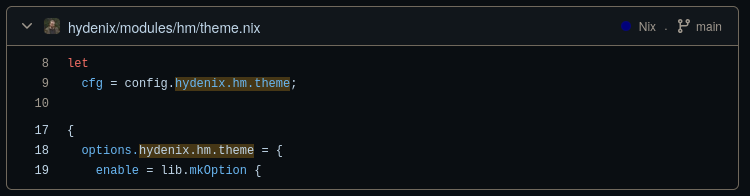
Click on the file to see the actual options definition, which looks something like this:
  options.hydenix.hm.theme = {
    enable = lib.mkOption {
      type = lib.types.bool;
      default = config.hydenix.hm.enable;
      description = "Enable theme module";
    };

    active = lib.mkOption {
      type = lib.types.str;
      default = "Catppuccin Mocha";
      description = "Active theme name";
    };

    themes = lib.mkOption {
      type = lib.types.listOf lib.types.str;
      default = [
        "Catppuccin Mocha"
        "Catppuccin Latte"
      ];
      description = "Available theme names";
    };
  };
Notice that active has type str, which means it accepts a string.
So you’d configure it like this:
hydenix.hm.theme.active = "Catppuccin Mocha";
You can find the full list of option types in the nixos manual.
Required options
These are the required options for hydenix. You must set these options or else hydenix will not load.
{
  hydenix = {
    enable = true; # Enable Hydenix modules globally - required, default false
    hm.enable = true; # Enable Hydenix home-manager modules globally - required, default false
  };
}
Default options
Below are the default options for hydenix. they are in object format and any options you may follow the steps above to see any of the options implementation and documentation.
Important
hydenix.hmoptions must be used within a home-manager module, eg./modules/hm/default.nix.
hydenix = {
  enable = false; # Enable Hydenix modules globally
  audio.enable = config.hydenix.enable; # Enable audio module
  boot = {
    enable = config.hydenix.enable; # Enable boot module
    grubExtraConfig = ""; # Additional configuration for GRUB
    grubTheme = "Retroboot"; # GRUB theme to use, use either `Retroboot` or `Pochita`
    kernelPackages = pkgs.linuxPackages_zen; # Kernel packages to use
    useSystemdBoot = true; # Whether to use systemd-boot (true) or GRUB (false)
  };
  gaming.enable = config.hydenix.enable; # Enable gaming module
  hardware.enable = config.hydenix.enable; # Enable hardware module
  hostname = config.system.nixos.distroId; # The name of the machine.
  locale = "en_US.UTF-8"; # The default locale.
  network.enable = config.hydenix.enable; # Enable network module
  nix.enable = true; # Enable nix module
  sddm.enable = true; # Enable sddm module
  system.enable = true; # Enable system module
  timezone = null; # The time zone used when displaying times and dates.
  hm = {
    enable = false; # Enable Hydenix home-manager modules globally
    comma.enable = config.hydenix.hm.enable; # Enable comma module
    dolphin.enable = config.hydenix.hm.enable; # Enable dolphin module
    editors = {
      enable = config.hydenix.hm.enable; # Enable text editors module
      default = "code"; # Default text editor
      neovim = true; # Enable neovim
      vim = true; # Enable vim
      vscode = {
        enable = true; # Enable vscode
        wallbash = true; # Enable wallbash extension for vscode
      };
    };
    fastfetch.enable = config.hydenix.hm.enable; # Enable fastfetch configuration
    firefox.enable = config.hydenix.hm.enable; # Enable firefox module
    gtk.enable = config.hydenix.hm.enable; # Enable gtk module
    hyde.enable = config.hydenix.hm.enable; # Enable hyde module
    hyprland = {
      enable = config.hydenix.hm.enable; # Enable hyprland module
      animations = {
        enable = cfg.enable; # Enable animation configurations
        extraConfig = ""; # Additional animation configuration
        overrides = {}; # Override specific animation files by name
        preset = "standard"; # Animation preset to use
      };
      extraConfig = ""; # Extra config appended to userprefs.conf
      hypridle = {
        enable = cfg.enable; # Enable hypridle configurations
        extraConfig = ""; # Additional hypridle configuration
        overrideConfig = null; # Complete hypridle configuration override
      };
      keybindings = {
        enable = cfg.enable; # Enable keybindings configurations
        extraConfig = ""; # Additional keybindings configuration
        overrideConfig = null; # Complete keybindings configuration override
      };
      monitors = {
        enable = cfg.enable; # Enable monitor configurations
        overrideConfig = null; # Complete monitor configuration override
      };
      nvidia = {
        extraConfig = ""; # Additional NVIDIA configuration
        overrideConfig = null; # Complete NVIDIA configuration override
      };
      overrideMain = null; # Complete override of hyprland.conf
      pyprland = {
        enable = cfg.enable; # Enable pyprland configurations
        extraConfig = ""; # Additional pyprland configuration
        overrideConfig = null; # Complete pyprland configuration override
      };
      shaders = {
        enable = cfg.enable; # Enable shader configurations
        active = "disable"; # Active shader preset
        overrides = {}; # Override or add custom shaders
      };
      suppressWarnings = false; # Suppress warnings about configuration overrides
      windowrules = {
        enable = cfg.enable; # Enable window rules configurations
        extraConfig = ""; # Additional window rules configuration
        overrideConfig = null; # Complete window rules configuration override
      };
      workflows = {
        enable = cfg.enable; # Enable workflow configurations
        active = "default"; # Active workflow preset
        overrides = {}; # Override or add custom workflows
      };
    };
    lockscreen = {
      enable = config.hydenix.hm.enable; # Enable lockscreen module
      hyprlock = true; # Enable hyprlock lockscreen
      swaylock = false; # Enable swaylock lockscreen
    };
    notifications.enable = config.hydenix.hm.enable; # Enable notifications module
    qt.enable = config.hydenix.hm.enable; # Enable qt module
    rofi.enable = config.hydenix.hm.enable; # Enable rofi module
    screenshots = {
      enable = config.hydenix.hm.enable; # Enable screenshots module
      grim.enable = true; # Enable grim screenshot tool
      satty.enable = true; # Enable satty screenshot annotation tool
      slurp.enable = true; # Enable slurp region selection tool
      swappy.enable = false; # Enable swappy screenshot editor
    };
    shell = {
      enable = config.hydenix.hm.enable; # Enable shell module
      bash.enable = false; # Enable bash shell
      fastfetch.enable = true; # Enable fastfetch on shell startup
      fish.enable = false; # Enable fish shell
      p10k.enable = false; # Enable p10k shell
      pokego.enable = false; # Enable Pokemon ASCII art scripts on shell startup
      starship.enable = true; # Enable starship shell
      zsh = {
        enable = true; # Enable zsh shell
        configText = ""; # Zsh config multiline text, use this to extend zsh settings in .zshrc
        plugins = [ "sudo" ]; # Zsh plugins to enable
      };
    };
    social = {
      enable = config.hydenix.hm.enable; # Enable social module
      discord.enable = true; # Enable discord module
      vesktop.enable = true; # Enable vesktop module
    };
    spotify.enable = config.hydenix.hm.enable; # Enable spotify module
    awww.enable = config.hydenix.hm.enable; # Enable awww wallpaper daemon
    terminals = {
      enable = config.hydenix.hm.enable; # Enable terminals module
      kitty = {
        enable = true; # Enable kitty terminal
        configText = ""; # Kitty config multiline text, use this to extend kitty settings
      };
    };
    theme = {
      enable = config.hydenix.hm.enable; # Enable theme module
      active = "Catppuccin Mocha"; # Active theme name
      themes = [ "Catppuccin Mocha" "Catppuccin Latte" ]; # Available theme names
    };
    uwsm.enable = config.hydenix.hm.enable; # Enable uwsm module
    waybar = {
      enable = config.hydenix.hm.enable; # Enable bar module
      userStyle = ""; # Custom CSS styles for waybar user-style.css
      waybar.enable = true; # Enable waybar
    };
    wlogout.enable = config.hydenix.hm.enable; # Enable logout module
    xdg.enable = config.hydenix.hm.enable; # Enable XDG base directory specification
  };
};
FAQ
General FAQ
- FAQ
- General FAQ
- hydenix FAQ
- How do I upgrade hydenix?
- How do I fix (nix error / system error / bug / etc)?
- Common errors
- What are the module options?
- What if I want to customize hydenix?
- What are some example configurations?
- How do I persist changes on reboot/rebuild/etc?
- How do I add a new theme?
- What is mutable.nix?
- Why do themes still show after I remove them from
hydenix.hm.theme.themes? - Requesting features
- Other faq
Why should I use nixos?
Nixos offers several key advantages:
- Reproducible setups: roll back to working states instantly if something breaks.
- Configuration as code: version control your entire OS setup.
- No dependency hell: packages are isolated, allowing multiple versions side by side.
- Declarative approach: describe the desired end state rather than steps to achieve it.
- Risk-free experimentation: test configurations without permanent consequences.
- Developer-friendly: create isolated environments with precise dependencies.
There’s a learning curve, but the benefits are worth it.
How do I learn more about nix?
Tip
Nix is a powerful package manager and configuration system that can be overwhelming at first. here are some resources to help you get started:
General resources
hydenix FAQ
How do I upgrade hydenix?
Please see the upgrading guide for more information on how to update/upgrade your system.
How do I fix (nix error / system error / bug / etc)?
Please see the troubleshooting guide for more information on how to diagnose and fix issues. Or create an issue in the hydenix GitHub repository.
Common errors
Existing file '...' is in the way of '...'
This error occurs when home-manager tries to manage a file that already exists and wasn’t created by home-manager.
Example:
Existing file '/home/user/.config/kitty/kitty.conf' is in the way of '/nix/store/...-home-manager-files/.config/kitty/kitty.conf'
Solution 1: remove existing files (recommended)
Remove the conflicting files and let home-manager recreate them:
# Remove the specific file
rm ~/.config/kitty/kitty.conf

# Or remove entire config directory if needed (careful not to delete important files)
rm -rf ~/.config/kitty/
Solution 2: backup existing files
If you want to preserve your existing configuration:
# Create backup
mv ~/.config/kitty/kitty.conf ~/.config/kitty/kitty.conf.backup

# Then rebuild to let home-manager create the new file
sudo nixos-rebuild switch
Solution 3: force home-manager to backup automatically
Add this to your configuration.nix to automatically backup conflicting files:
{
  home-manager.backupFileExtension = "backup";
}
This will automatically rename existing files with a .backup extension when home-manager encounters conflicts, allowing the rebuild to proceed without manual intervention only once.
Warning
If there is a conflict again, home-manager will error for you to manually resolve it. i don’t include this by default as automating backups may not be ideal for users and it does not really solve the issue with managing backups
What are the module options?
Visit options.md for more information on the module options.
What if I want to customize hydenix?
hydenix is designed to be customizable outside of the module options. write your own modules, import your own flakes, packages, etc.
If you need to disable any of the modules above in module options, simply disable the module and write your own configuration. ideally referencing the module in the source code.
Note however, it’s very easy to overwrite hydenix defaults this way and may lead to bugs. feel free to ask questions in our discord if you need help.
What are some example configurations?
See community configs for examples.
How do I persist changes on reboot/rebuild/etc?
Important
Do not edit any mutable files at runtime as they may be overwritten on rebuild
all edits must be done in your flake via nixos & home-manager options
Some state files in hydenix are mutable by design. this allows certain theme changes during runtime.
Example:
Lets say you have the default theme set to Catppuccin Mocha in hydenix.hm.theme.active.
You change a theme during runtime using Meta + Shift + T to Catppuccin Latte.
Your config is unchanged so when you reboot/relog/rebuild, the theme will revert to Catppuccin Mocha.
{
  hydenix.hm.theme.active = "Catppuccin Mocha";
}
Simply change the theme in your config to match your desired theme and rebuild.
{
  hydenix.hm.theme.active = "Catppuccin Latte";
}
But what about file you want to stop from reverting? waybar position or kitty config?
home-managers home.file allows you to do this
# any file in `./modules/hm/`
{
  home.file = {
    # copy kitty config to your template flake
    # cp ~/.config/kitty/kitty.conf ~/path/to/flake/kitty.conf
    ".config/kitty/kitty.conf" = {
      source = ./kitty.conf; # path to your kitty config in your template flake
    };
    # copy waybar position state to your template flake
    # cp ~/.config/waybar/config.ctl ~/path/to/flake/config.ctl
    ".config/waybar/config.ctl" = {
      source = ./config.ctl; # path to your waybar config in your template flake
    };
  };
}
See home.file options for more information
How do I add a new theme?
What is mutable.nix?
Important
Do not edit any mutable files at runtime as they may be overwritten on rebuild
all edits must be done in your flake via nixos & home-manager options
mutable.nix is a custom module that allows certain files to be copied instead of symlinked during system builds, making them writable at runtime. key points:
- Extends
home.file,xdg.configFile, andxdg.dataFilewith amutableoption - Files marked as
mutable = true(andforce = true) will be writable - Changes persist across rebuilds
- Useful for programs that need runtime configuration changes
Example usage in scripts:
home.activation = {
    example = lib.hm.dag.entryAfter [ "mutableGeneration" ] ''
        $DRY_RUN_CMD echo "example"
    '';
}
Credit: @piousdeer
Why do themes still show after I remove them from hydenix.hm.theme.themes?
Themes are saved in ~/.config/hydenix/themes so they will still show after you remove them from hydenix.hm.theme.themes.
To clear the saved themes, run rm -rf ~/.config/hydenix/themes/THEME_NAME for each theme you want to remove.
Requesting features
Please open a feature request if you have any feature requests.
Other faq
How do I run hyprland in a vm?
Hyprland vm is not well supported. check out hyprland - running in a vm
Best bet is to have virtio, opengl, and VT-x support
Non-nixos hosts should run with nixGL eg nixGL nix run .
Hardware requirements
CPU- Intel CPU with VT-x or AMD CPU with AMD-V
- Virtualization enabled in BIOS/UEFI
GPU
- NVIDIA: GTX 600+ series (proprietary drivers)
- AMD: HD 7000+ series
- Intel: HD 4000+ (Ivy Bridge)
- OpenGL 3.3+ support required
1. Install drivers
# Nvidia
sudo apt install nvidia-driver nvidia-utils     # Debian/Ubuntu
sudo pacman -S nvidia nvidia-utils              # Arch
# NixOS configuration
{
  hardware.graphics.enable = true;
  hardware.nvidia.package = config.boot.kernelPackages.nvidiaPackages.stable;
  hardware.nvidia.modesetting.enable = true;
}

# AMD
sudo apt install mesa-utils vulkan-tools        # Debian/Ubuntu
sudo pacman -S mesa lib32-mesa vulkan-radeon    # Arch
# NixOS configuration
{
  hardware.graphics.enable = true;
  hardware.graphics.extraPackages = with pkgs; [ amdvlk ];
}

# Intel
sudo apt install mesa-utils intel-media-va-driver  # Debian/Ubuntu
sudo pacman -S mesa lib32-mesa intel-media-driver  # Arch
# NixOS configuration
{
  hardware.graphics.enable = true;
  hardware.graphics.extraPackages = with pkgs; [ intel-media-driver ];
}

# KVM modprobe
modprobe kvm
modprobe kvm_intel # or kvm_amd
# NixOS configuration
{
  boot.kernelModules = [ "kvm-intel" ]; # or "kvm-amd" for AMD processors
  virtualisation.libvirtd.enable = true;
}
2. Verify setup
# Verify KVM support
egrep -c '(vmx|svm)' /proc/cpuinfo    # Should return > 0
lsmod | grep kvm                       # Check KVM modules

# Host: Check OpenGL
glxinfo | grep "OpenGL"
3. Setup the vm
To set up the vm, follow the instructions in the hyprland - running in a vm guide.
Additionally, the following qemu options have been found to be successful:
-device virtio-vga-gl
-display gtk,gl=on,grab-on-hover=on
-usb -device usb-tablet
-cpu host
-enable-kvm
-machine q35
-device intel-iommu
-device ich9-intel-hda
-device hda-output
-vga none
Troubleshooting
Nix errors
Bix errors can be tricky to diagnose, but the below might assist in diagnosing the issue.
Tip
Rerun the command with
-vto get more verbose output. You can also rerun the command with--show-traceto get a more detailed traceback. If the nix error is not clear, often the correct error message is somewhere in the middle of the error message.
System errors
The following information is required when creating an issue, please provide as much as possible. It’s also possible to diagnose issues yourself with the information below.
-
System logs
journalctl -b # System logs sudo systemctl status home-manager-$HOSTNAME.service # Home-manager status -
System information
nix-shell -p nix-info --run "nix-info -m"
Contributing
This project uses direnv for pre-commit hooks. please install it first:
- nix:
nix-env -iA nixpkgs.direnv - macos:
brew install direnv - ubuntu/debian:
apt-get install direnv
Then run direnv allow to enable the hooks
More documentation on the codebase can be found at template README
This project enforces conventional commits format for all commit messages. each commit message must follow this structure:
type(optional-scope): subject

[optional body]

[optional footer(s)]
Where:
-
type must be one of:
feat: A new featurefix: A bug fixdocs: Documentation changesstyle: Code style changes (formatting, etc)refactor: Code changes that neither fix bugs nor add featuresperf: Performance improvementstest: Adding or modifying testschore: Maintenance tasks
-
scope is optional but if used:
- must be lowercase
- should be descriptive of the area of change
- examples: vm, themes, home, cli, docs, etc.
-
subject must:
- not end with a period
- be descriptive
Examples:
feat(vm): add support for fedora vm configurationfix: correct wallpaper path in material themedocs: update installation instructionschore: update dependencies
Pull requests
- Fork the repository
- Create your feature branch (
git checkout -b feature/amazing-feature) - Commit your changes using conventional commits
- Push to the branch (
git push origin feature/amazing-feature) - Open a pull request
Changelog
The changelog is automatically generated from commit messages. clear, well-formatted commit messages ensure your changes are properly documented.
For more details, see the conventional commits specification.
Community
Here are a list of community configs using hydenix.
If you have a config you’d like to share, please open a PR to add it to the list.